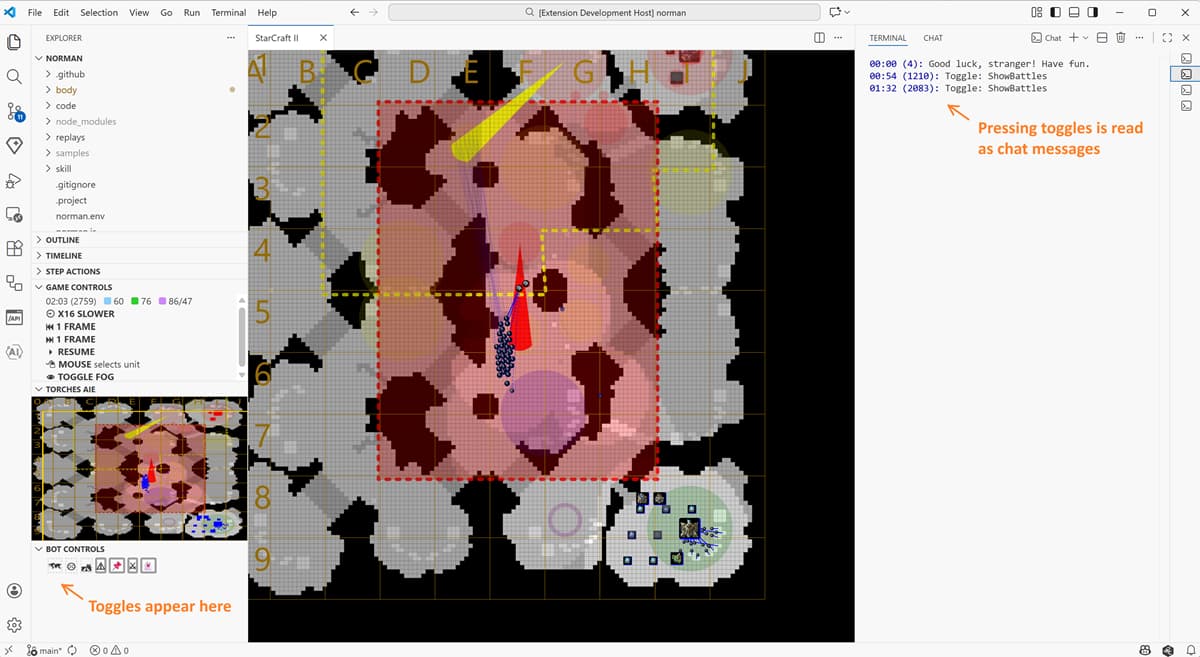
When playing a game your bot can use the debug commands to add information to the camera, minimap and the debug terminal.
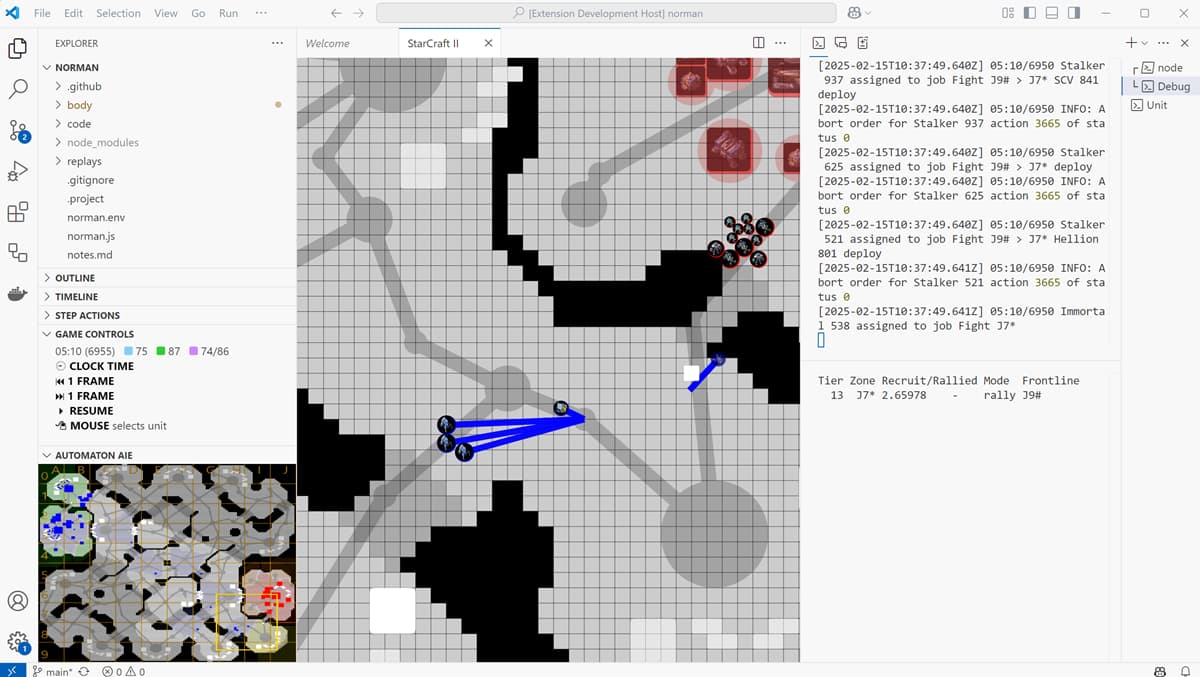
This screenshot demonstrates:
- A dynamic list of “battles” the bot engages in - as text in the
Debugterminal to the right - The coordinates of “zones” on the map and the path between them - as lines in the camera view
- The “alert levels” of the “zones” on the map - as colors on the minimap
The following debug commands are supported at the moment:
- Debug draw lines will show lines on camera and minimap
- Debug draw spheres will show circles on camera and minimap
- Debug draw text
- with virtual position -
virtualPos- will show in theDebugterminal. The x coordinate will be used to split debug info into tabs in the future - without virtual or world position - will be parsed as JSON object and interpreted as a shape or a toggle
- with virtual position -
Shapes
The following shapes can be displayed with debug draw text command without virtual or world position:
arrow- Displays an arrow from pointx1,y1to pointx2,y2with starting point of radiusr. Example:{ "shape": "arrow", "x1": 50, "y1": 50, "x2": 100, "y2": 100, "r": 10, "color": "yellow" }cell- Colors pointx,yon the map. Example:{ "shape": "cell", "x": 100, "y": 100, "color": "blue" }circle- Displays a circle with center pointx,yand radiusr. Example:{ "shape": "circle", "x": 100, "y": 100, "r": 20, "color": "green" }line- Displays a line from pointx1,y1to pointx2,y2. Example:{ "shape": "line", "x1": 50, "y1": 50, "x2": 100, "y2": 100, "width": 10, "color": "red" }polygon- Displays a polygon. Example:{ "shape": "polygon", "points": [50, 50, 100, 50, 100, 100], "opacity": 0.8 }sector- Colors the sector at columncoland rowrow. Example:{ "shape": "sector", "col": 0, "row": 2, "color": "green" }
Shapes arrow, circle, line, and polygon support the optional properties:
color- The color of the shape. Defaults togoldfilled- Whentruefills the shape with the color. Otherwise, colors its contour. Ignored forlineshapes. Defaults tofalsewidth- The stroke width when the shape is not filled. Defaults to1dotted- Whentrueand the shape is not filled displays the contour of the shape with a dotted line.opacity- The opacity level of the coloring. Defaults to0.2pulsing- Whentruedisplays the shape as pulsating. Defaults tofalse
Toggles
Your bot can specify feature toggles to give you control over the debug information it adds to the camera, minimap and the debug terminal, or even control over its play. A toggle is specified by sending a debug draw text without virtual or world position in the following format:
{ "toggle": "<toggle key>, "label": "<icon or text>", "description": "<tooltip>", "on": <true or false> }
Your bot needs to send the above every game loop as long as the toggles are to be available.
The toggles appear in the left bottom view titled “Bot Controls”. When you press the toggle, your bot will see this in the game observation as a chat message in the form:
Toggle: <toggle key>